Notes
Your notes are your own folder of Markdown files. Sioul reads it as Obsidian reads a vault, and links to it; it never owns it. You can keep writing in it with any other program.
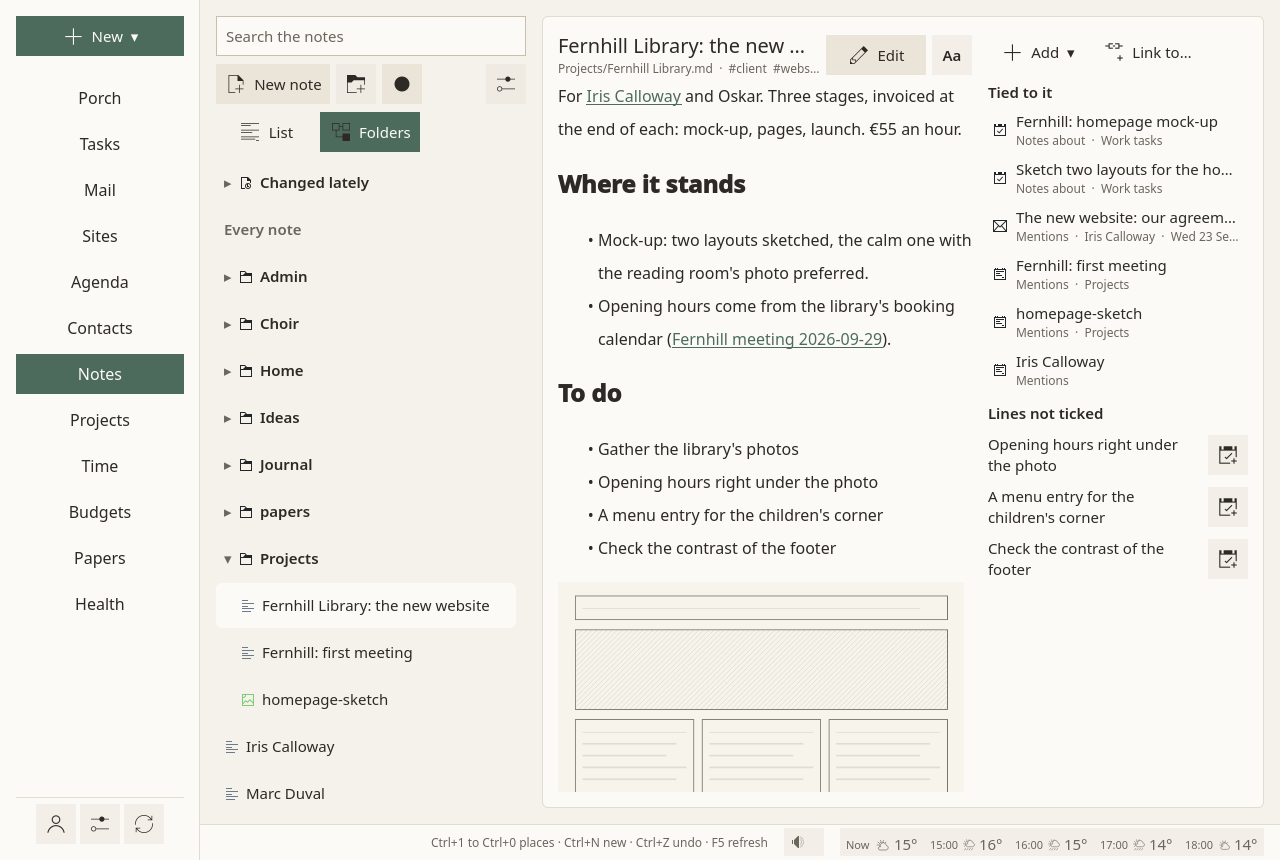
Your notes folder
Chosen in Settings ▸ Your folder and sharing ▸ The notes folder. Beside your notes, the same folder keeps your projects, budgets, papers and scanned letters, so that they all travel together when the folder is synced to your other computers.
Finding a note
Search comes first: Search the notes. Below it, the notes changed lately, then every note, as one List or as Folders, folded until opened. Sioul remembers which one you chose. No filing is asked of you.
Reading and writing
A note opens to be read. Its links are followed with a click, wherever they lead: another note, a task, a message, an event.
- Edit switches to writing; Save keeps it.
[[Another note]]links to a note by its name, wherever it is in the folder. Markdown links,#tagsand front matter work too.- Each note shows what links to it, and what it is tied to: tasks, messages, events, people, projects.
- Aa sets the font, its size and the space between lines, for reading.
- Open with… opens the note in another program.
A line such as - [ ] Ask for the certificate, not ticked, is one click from becoming a task: Make it a task. The task stays tied to its note.
New notes
New note, or New ▾ ▸ A note, asks for its title. A note can also be made from a message (it starts with who wrote it), from an event (dated, its guests listed, then Send to the guests), or from a task.
Notes made from mail and events go into one folder of your notes, set in the Notes page's ⚙: New notes go into.
A right click on a folder: New note here…, New folder inside…, Rename the folder…, Take out this empty folder.
Pictures, PDFs and sounds
They are notes too, listed beside the Markdown files, and opened in place: a picture fitted to the page, a PDF's pages, a sound with play, pause and where it is. They can be tied to tasks and projects like any note.
![[scan.png]] shows the picture inside a note.
Record an audio memo records into the memos folder of your notes, and opens it as a note. The microphone is open only while it records.
Renaming and deleting
A right click on a note:
- Rename…: the notes that link to it, and the tasks tied to it, follow the new name.
- Move to the trash: the note goes to the folder's
.trash, as Obsidian does, with Undo.
On several computers
Your notes travel with their folder's own sync: Nextcloud, Dropbox, Syncthing. A linked note that has not arrived yet shows faded, with "Not on this computer yet: it may still be syncing". See Sharing between your computers.