First steps
Nothing has to be set up at once. Each step below is useful on its own, and Sioul works with whatever you give it. Open it from your application menu, or with sioul-app in a terminal.
Sioul speaks English and French, as your system does, unless you choose otherwise in Settings ▸ Display ▸ Language.
The window
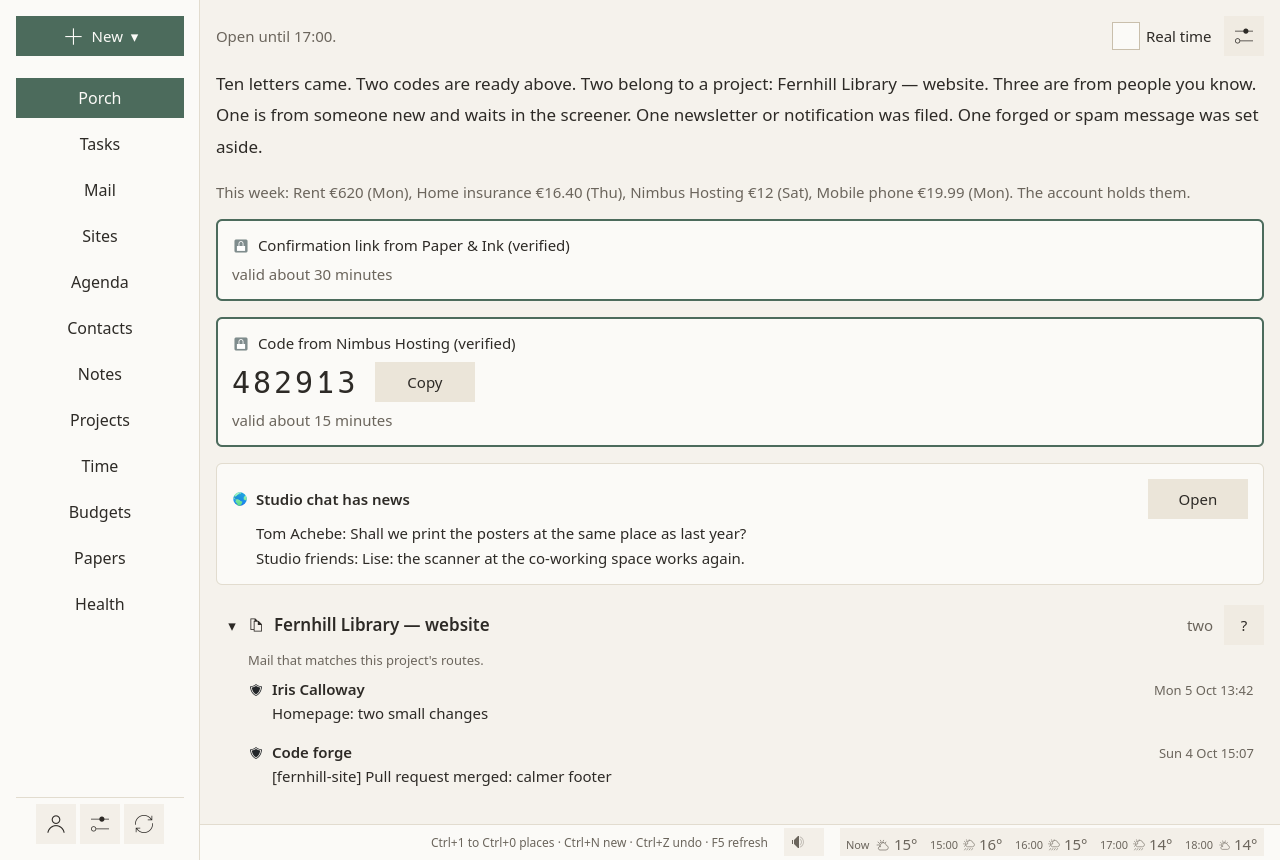
On the left, from top to bottom:
- New ▾ makes something of any kind: a message, a task, an event, a contact, a note, a project, time spent, a budget movement, a paper.
- The places: Porch, Tasks, Mail, Sites, Agenda, Contacts, Notes, Projects, Time, Budgets, Papers, Health.
- Three icons, apart at the bottom: Accounts (a person), Settings (sliders), and Refresh everything, which fetches mail, the agenda, tasks and contacts again at once.
At the bottom, the status line says one sentence about what happened last. After anything is moved, deleted or sent, "Undo" waits there for ten seconds. In quiet time, it says when work comes back. At its right end are the keys, the sound button (sounds to focus or rest by) and the weather at a place you choose.
On each page, the ⚙ at the end of the first row holds that page's own settings, each with a sentence on what it changes; they are saved at once. Where long text is read (a message, a note), "Aa" sets the font, its size and the space between lines. A right click, or the Menu key, on anything gives what is not in view.
Keys
Everything works from the keyboard: Tab to move, Enter to choose, Escape to go back.
| Keys | What they do |
|---|---|
| Ctrl+1 to Ctrl+9, Ctrl+0 | the first ten places, in the order of the list: Porch, Tasks, Mail, Sites, Agenda, Contacts, Notes, Projects, Time, Budgets |
| Ctrl+N | New ▾ |
| Ctrl+Z | Undo, while it is offered |
| F5 | Refresh everything |
| Ctrl+Enter | Send, in the writing window |
Add your mail
- Open Accounts (the person icon), then the Add an account tab.
- Under "Add a mail account", type your email address and choose Find the server.
- Sioul says what it found and where from: your provider's own settings, Thunderbird's list of providers, or a guess, said as such, to check before going on.
- Type your password. It goes to your system's keyring, nowhere else.
- Choose Connect and add. Sioul tests the password before keeping anything, then fetches your recent mail.
Gmail, and other providers when two-step verification is on, want an app password instead of your usual one: you make it in your account's settings at the provider (for Gmail, at myaccount.google.com/apppasswords). When the provider is known, the form offers Make an app password, which opens the right page.
Fetching changes nothing on your mail server. Sioul writes there only when you act: opening a message marks it read, as any mail program does; archiving, deleting and moving happen ten seconds after you asked, so that "Undo" can stop them.
Then, on the address's card in Your accounts, tick what this address is for: work, your admin, leisure, or several. Until you say, an address counts as work, so that it never reaches your evenings. See Hours.
Add your calendars, tasks and contacts
From a CalDAV and CardDAV server: Nextcloud, Fastmail, iCloud, your host.
- In Accounts ▸ Add an account, under "Add contacts and calendars", type your address and password.
- If Sioul cannot find the server from the address, unfold Server address, when it cannot be found and give it.
- Choose Connect and add. Your address books and calendars come; tasks come with the calendars that hold them.
Already added your mail? On its card in Your accounts, What this server offers asks the server: its calendars and contacts, and for a Nextcloud, its version and apps. One click adds them.
Add Google
Google takes no password from other programs: you sign in on Google's own page.
- In Accounts ▸ Add an account, under "Google calendars, contacts and tasks", type your Google address.
- Choose Sign in with Google. Your browser opens on Google's page; Sioul waits for its answer for five minutes at most.
- Sign in, and allow what Sioul asks: your calendars, your contacts and your tasks.
Sioul keeps the access in your system's keyring. Google keeps less than an open server: what it does not keep shows greyed in Sioul, never hidden, with why. What Sioul reads and writes in your Google account, and how to take the access back: Privacy policy.
If Sioul asks for a Google key
A copy of Sioul built without its own Google key asks for yours. How to make your Google key unfolds the steps in Accounts: a free project in Google Cloud, about fifteen minutes, once. You can also choose Use a Google key of my own at any time.
Google's mail is added as any mail account, above, with an app password.
Choose your notes folder
Your notes are a folder of Markdown files: an Obsidian vault works as it is. Sioul also keeps your projects, budgets, papers and scanned letters in that folder, so that they travel with it to your other computers.
In Settings ▸ Your folder and sharing, choose The notes folder. Sioul reads it and links to it; it never owns it. See Notes.
Set your hours
In Settings ▸ Hours: your working hours, hours for your own admin, and free time. Without them, everything comes at any hour, as in other mail programs. Until they are set, the Porch asks once, with Set my hours and Leave as is. See Hours.
Pin the websites you check
The secure mailboxes of your bank, your health insurer, the tax office; a chat; a video call.
On the Sites page, Usual sites ▾ lists about 400 of them by country, or Pin a site finds one by a word ("bank", "ameli"), or takes any address by hand. You log in once; the site keeps you logged in. See Sites.
Keep Sioul open
While its window is open, Sioul keeps each inbox open on the server: a code or a sign-in link you asked a site for reaches you within seconds, as one quiet notification, whatever the hour.
Reminders can also come with the window closed: in Settings ▸ Reminders and notifications, tick With Sioul's window closed. A small watcher then starts with your session; it fetches no mail.